The Distribution lists page found under Email offers Nominated Contacts & specified Distribution List Editors the ability to create various types of mailings lists.
The "Permission: Distribution list editor" can be granted by any Nominated Contact to any staff member on the User List Search page. Instructions on granting roles & permissions are visible here
For StaffMail users, USO-based mailing lists described on this page will be located in the StaffMail's global address list.
Mailing lists can optionally be hidden from appearing in the global address book on a per-list basis.
For users of any other email systems, if these mailing lists are needed, they should be added to their personal or shared address books as a contact using the full email address of the list.
There is a 5Mb limit on the overall size of any mail message sent via a distribution list.
The functionality offers the following benefits:
•The list of recipients in a USO-generated distribution group is dynamically updated from the USO database at the time an email is sent.
Assuming your MIS is always kept up-to-date and this data is regularly exported to USO via AutoUpdate, your recipient list should not include any outdated addresses and you should have very few, if any, bounced emails.
•Mailing lists can contain as many recipients as may be required.
If an email is sent to all pupils, for example, every one of them should be able to receive the email.
The previous restriction imposed by Microsoft on StaffMail users, where only the first 100 recipients would receive an email does not exist for any mailing list created via this functionality.
•Emails addressed to a distribution list in the "To" field will not expand to show individual recipient names.
When emails to distribution groups are sent, the recipients will only see the list name rather than an expanded list of all recipients in order to protect everyone's privacy.
•All USO-based lists will have individual addresses so that emails can be sent to them from outside the StaffMail and Exchange Mail systems.
Each list created for StaffMail users will have a unique email address which takes the format: DFEcode.name@lists.lgflmail.org
Each list created for any other mail users will have a unique address which takes the format: DFEcode.name@lists.uso.im
Auto-generated lists will have a relevant name automatically given to them but any bespoke lists will need to be given a name by the person creating it.
To be able to email a list using its full address from outside the school/LA email system, the sender's email address needs to be explicitly added to the group of people who have permission to post to that particular list.
•Only defined individuals will be able to email each distribution list
These will be either people who have the USO profile Distribution List Poster or have been defined in some other way (see section below).
•Sender verification (optional)
To ensure that the sender is valid and their email address has not been spoofed, each establishment can enable sender address verification. If this is done, when an allowed sender posts something to a distribution list, they will receive a confirmation email to ensure they are truly the sender before the email is released to the intended recipients. This is done per list.
Enabling USO-defined distribution lists
To enable this functionality, visit the Distribution Lists page found under the Email tab and tick the box for each distribution list they would like the system to create automatically.
It will take up to 24 hours for any new mailing lists to be created and to be visible to users inside StaffMail. The new mailing lists created using this functionality will appear in the Global Address List (GAL) rather than the Public folders within StaffMail. They will appear alphabetically by the Description field.
The lists on the support site are colour-coded as follows:
•Pink background: Auto-generated lists that are created when the functionality is enabled by the school. These lists can't be deleted but they can be edited and can be hidden from the main address book.
•Yellow background: Lists created by the school or LA that contain members added as individuals either one at a time or by uploading a .csv file. These lists can be edited and deleted.
•Blue background: Lists created by the school or LA that contain members based on USO profiles. These lists can be edited and deleted.
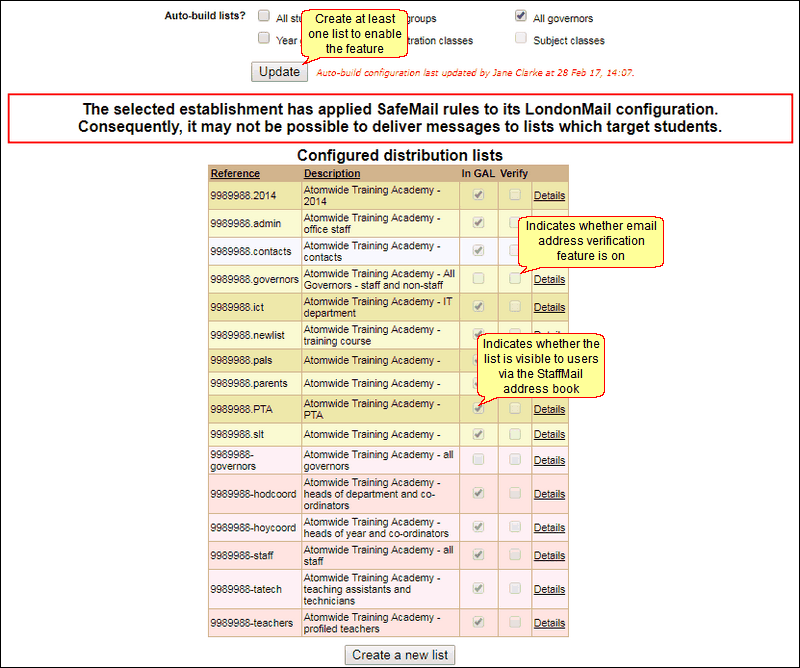
 The "All Staff" list will NOT automatically include anyone who is not an official member of staff at the school. This means that any Nominated Contact who works for an external ICT support company will not be in the staff list by default but can be manually added to that list should this be required.
Giving permissions to email a list
People who are able to post to each distribution list will need to be explicitly specified. This can be done simply by selecting the posting mode of any list to All Nominated Contacts, All Staff, All Members of that list or All Users in the establishment.
By default, no one will initially have permission to post (send emails) to any of these mailing lists.
It will be necessary to either:
•Define people who can post to each list by editing one list at a time
•Or give certain staff the USO profile of Distribution List Poster. This would allow those individuals to post to all lists without needing explicit permission.
•Additionally, it is possible to have a small number of Distribution List Posters and, for each mailing list, define additional people who can post to that list. These can be individually named people and/or everyone who is a member of that mailing list. Individually named people can be added by uploading a CSV file.
Please note that any auto-generated mailing lists cannot be deleted. These lists can, however, be amended by adding recipients to them but not by removing any of the automatically added recipients.
It is possible for individual members of a mailing list to unsubscribe from that list if that list allows it. The setting is controlled by a tick-box which becomes available when lists are created and edited. This is discussed in the sections that follow.
Unsubscribing is done by going to My Account >> Account settings, selecting the Email tab and then clicking Edit account. The lower part of the left side of the screen will show which mailing lists each person belongs to. If unsubscribing is allowed from any list, the tick-box to unsubscribe will be active. If unsubscribing is not allowed, the tick-box will be greyed out for that list.
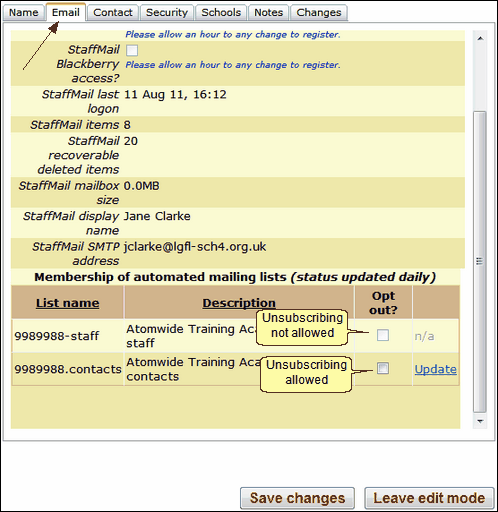
Please note that only list members with a USO account will be able to unsubscribe. Others may need to request that the person who created the list removes them from that mailing list.
See next:
