Bookmarks refer to the locations that users can access once they have successfully logged in. These come in two types RDP & VNC.
Adding a bookmark
To define types of connections and what they can access inside the school network, click on Select to the left of the group's name and edit its settings.
Then click on the Bookmarks tab. For a brand new group nothing will be listed.

Users can be allowed to access different types of resources remotely, each of which needs to be correctly configured.
Users are given access via bookmarks that you must configure. These are shown to users as links when they log in.
To add a bookmark you need to complete the fields and then click Add. Required fields are marked with an *.
This saves it for the group. No additional saving is required.
Follow the same process for each additional bookmark.
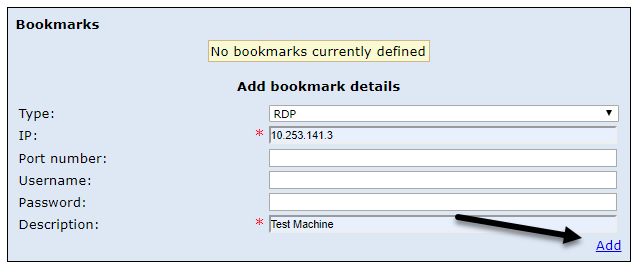
Explanation of fields
Type
RDP will create a connection that works in the same way as if you physically log onto the computer by effectively creating a real desktop session. This will be the way that most users connect.
VNC connects to the computer itself by sharing the screen, keyboard and mouse. Therefore, if someone is in front of the computer they would see the same thing and be able to also control the device. VNC requires a client, for example TightVNC to be installed, and a password set within this software. This password must be saved against this bookmark for this connection type to work.
IP
The IP address of the device that you want to connect to. This will be in the format 10.*.*.*
Port number
This field is optional, unless the port being used to connect has been changed. It's not recommended to change this particularly for RDP connections due to registry changes being required. There's further information on this here.
Username
With RDP connections this is an optional field to save the username that will be used to connect.
Password
With RDP connections this is an optional field to save the password that will be used to connect. This is a required field for VNC connections and needs to be the password saved in the VNC client.
Description
Is a description of the bookmark. This will be visible to the end user, so it's recommended to call it something meaningful.
Once a bookmark has been added, an additional option can be enabled to allow file transfer. This option allows the transfer of files to and from the device you are connecting from and the device you are connecting to inside the school.
To enable this option simply tick the box and then save the change.
Users accessing this bookmark will then be able to use the file transfer functionality. Instructions on this are available here.
See next:
See also:
