A member of staff no longer needs access to a shared mailbox, how do I stop access?
If a member of staff leaves your school and the account is either transfered or unallocated then nothing needs to be done in order for the user to be denied access to a shared mailbox.
However if the user still remains at the school their access to the shared mailbox will need to be manually removed.
To do this find the shared mailbox by going to Email > LGfL StaffMail accounts.
From the Domains menu select your school's domain, then select Manage shared mailboxes from the Activity dropdown menu.
Once here, select Manage for the particular mailbox in question. This will open up more options at the bottom of the screen.
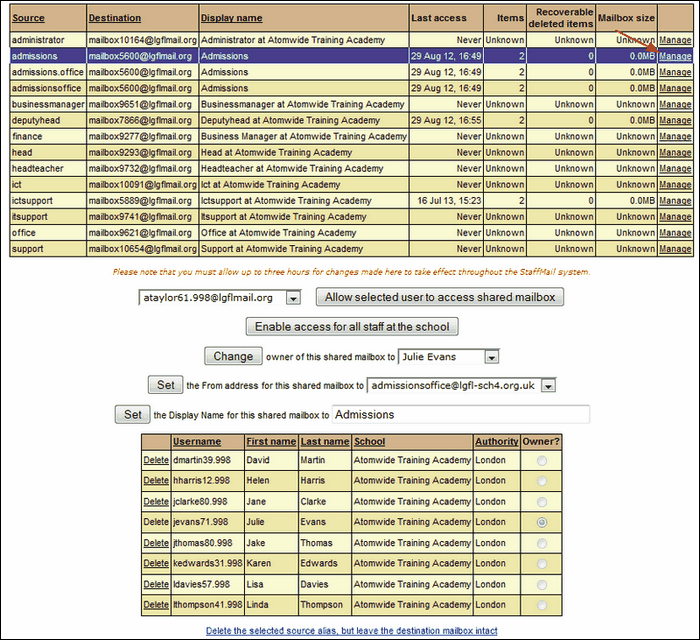
The additional options that are now displayed include a list of users that have access to the mailbox.
To remove one of these users simply click on the Delete link next to their name.
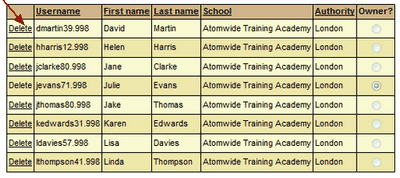
 This will not delete the member of staff's account but remove them from the list, denying them access to the mailbox.
If the delete link is not available this is because the member of staff is listed as the owner of the mailbox. This will need to be changed before the user can be removed.
For information about creating and configuring a shared mailbox please visit this page.
