How do I update an ongoing support case?
When you raise a support case with the Service Desk it gets allocated a unique reference number. This number allows you to track the progress of each case and MUST be used until the case is closed. Any additional information or replies to Wavenet Education MUST be posted within the same case.
 PLEASE DO NOT open a new case to post a reply to a question asked in a different case. This makes it impossible for both you and Wavenet Education engineers to track cases accurately.
•When you open a case, an Wavenet Education engineer will deal with it and will post a response in the support site.
•When this happens, you will receive an automated email alerting you that the case has been updated and providing you with a direct link to it.
•Alternatively, you can simply log in to the support site from your main URL then click on the Service Desk tab and select View Issues. This will list your open support cases. You can then select a case to view by clicking the Details link.
•If you click on a link from an email, you will be required to log in with your USO credentials and will then be taken directly to the case.
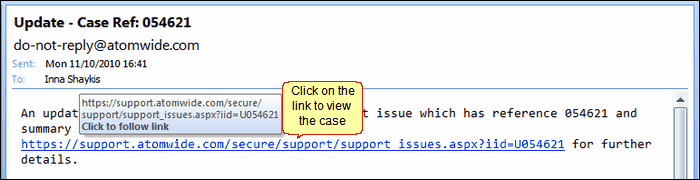
•The case will open and you will then see your initial query with Wavenet Education's response directly above.

•If the response you receive does not fully resolve answer your question or the engineer requests you to supply additional information, you will be required to update the case. Please note you must update the same case and MUST NOT open a new case for the same exact topic.
•To post a reply, enter your text in the white text box provided directly below the case notes (as shown in the image below).
Please note your screen may look slightly different in different browsers and you may need to scroll down the page in order to see the text box where you need to write. If you are using Internet Explorer 8 and have a support case containing a large amount of text, the white text box sometimes shifts quite far down the web page and you need to scroll down to find it. This bug in the browser merely changes the appearance of the page but does not prevent it from functioning in the correct way.
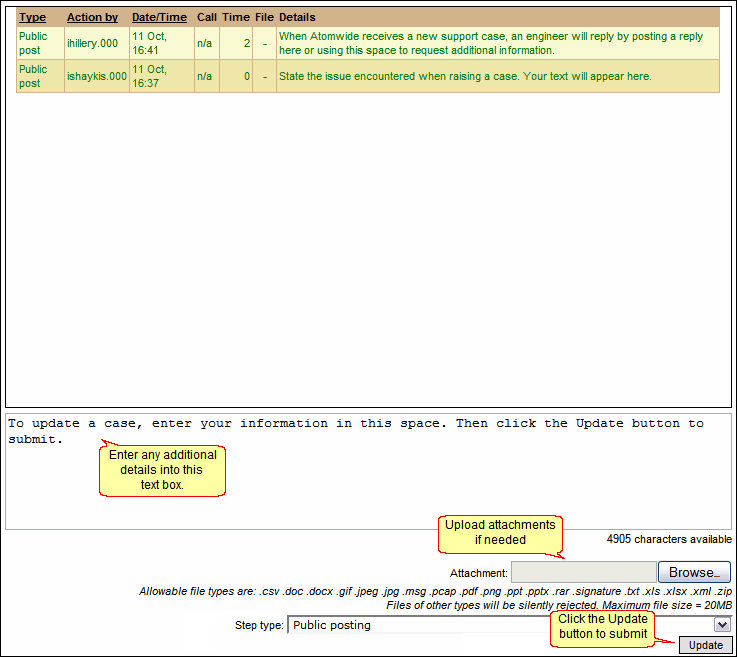
•Once you have entered your additional text (and uploaded any necessary documents) click the Update button in the lower right corner to submit the update.
•Your added text will then appear at the top of the case.

When you update a case, Wavenet Education receives an email informing them that you have made an additional post and the process continues until the case is resolved.
Closing a case
If you receive a reply from Wavenet Education that fully resolves your query, you are strongly encouraged to close the case at that point. To do this, click the grey Close issue button in the lower left corner of the screen.
