Backing up files or folders
Launch the Restor Backup Pro application.
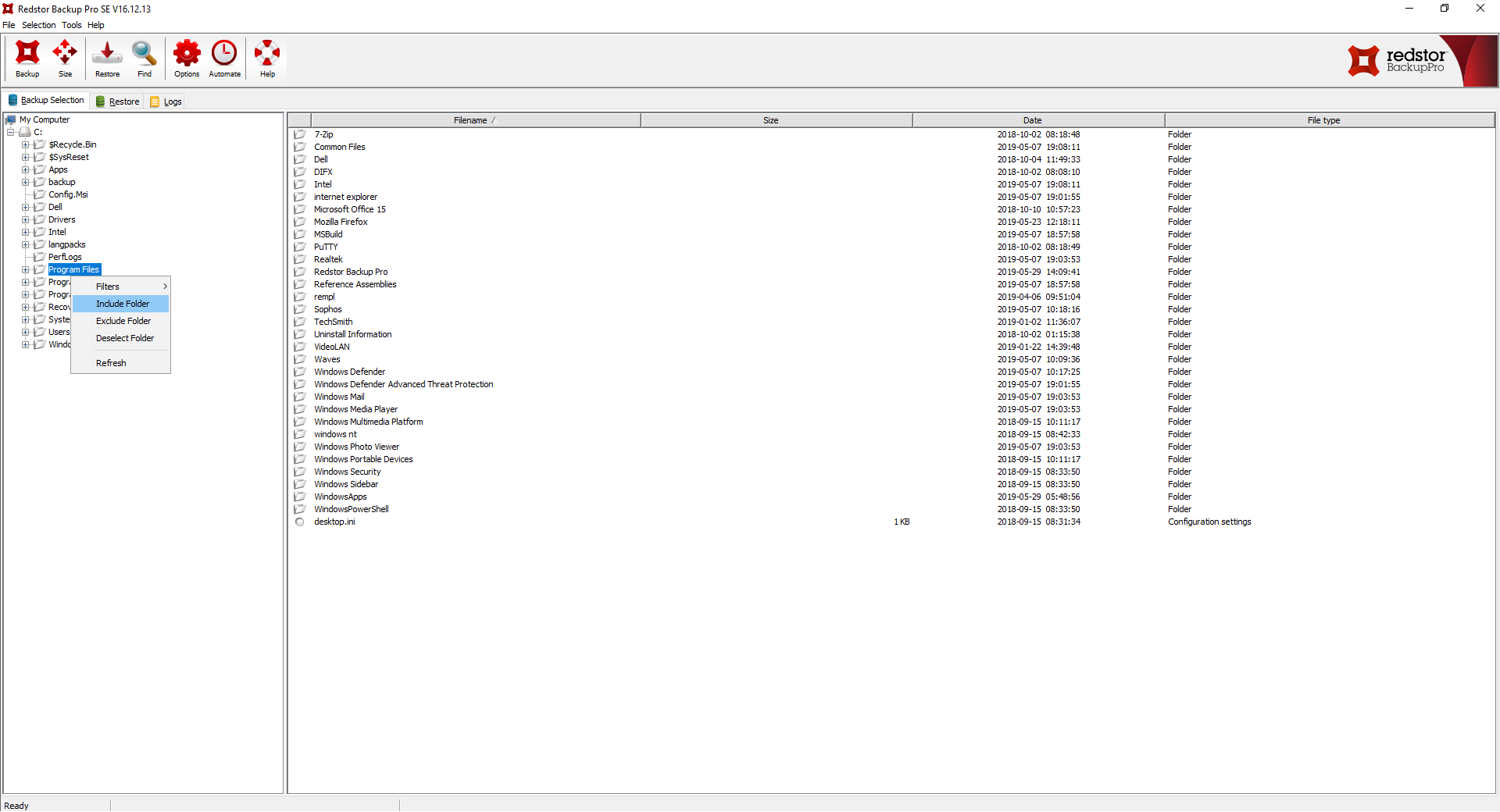
Navigate through the directory structure in the left pane to find the folder(s) or file(s) to be backed up.
Right click on selected folder and from the pop-up menu choose "include folder" to include the entire contents of the folder.
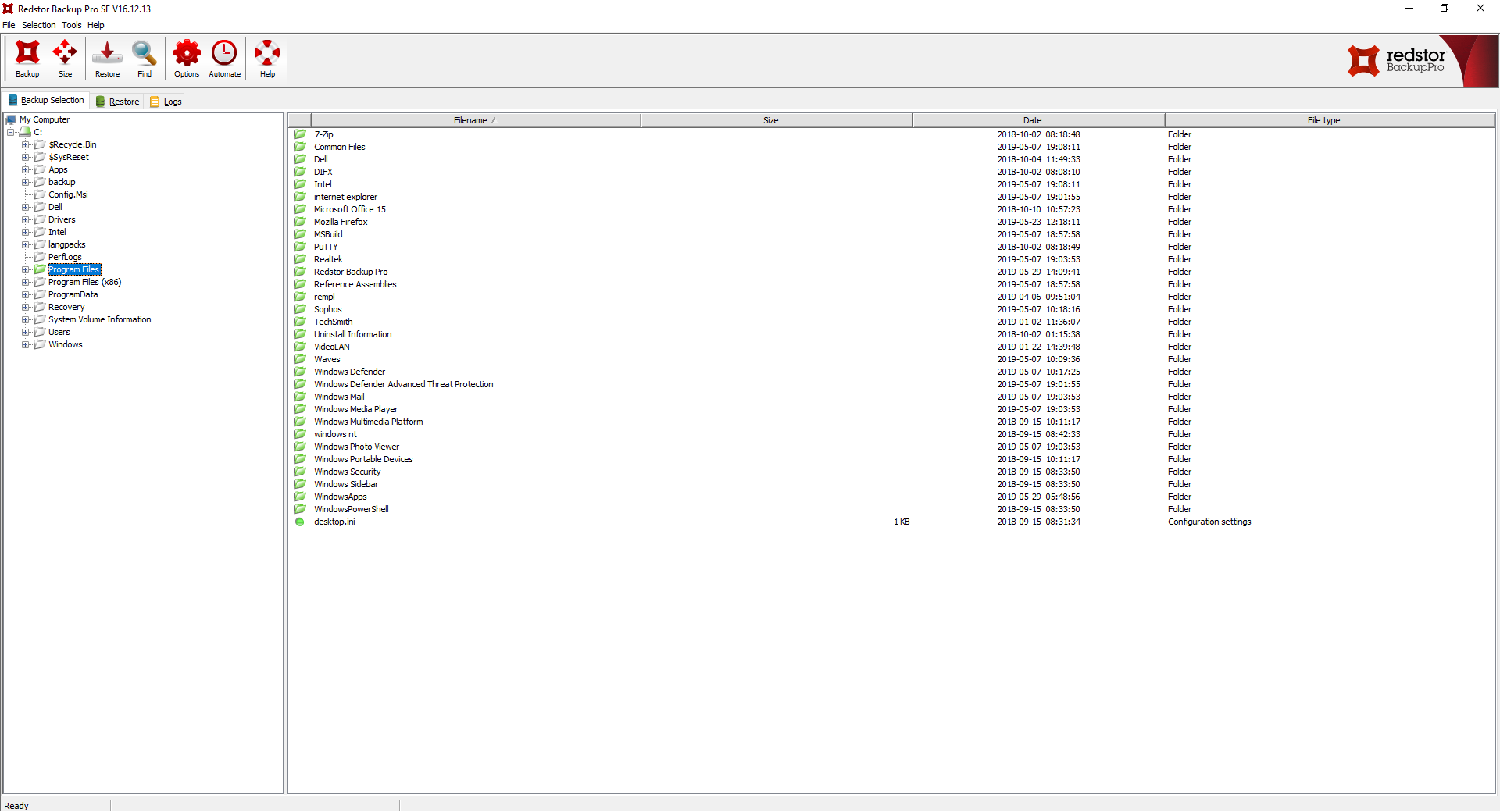
When selected, all included files will show on the right side and all folders/files both on the left and right will turn green.
There are two options for performing backups:
•backing up manually
•setting scheduled tasks
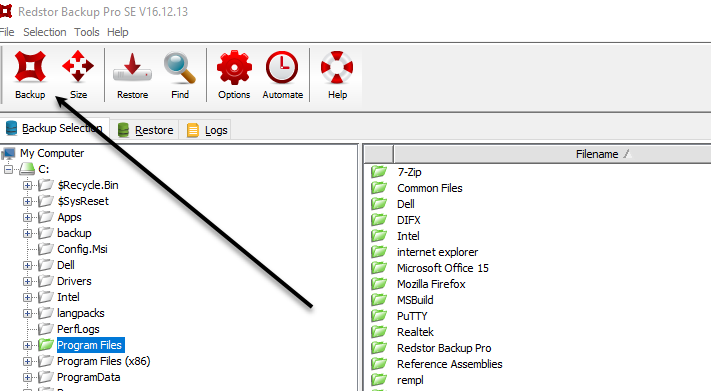
Click the Backup button in the top bar for an instant manual backup of the selected folder(s)/file(s).
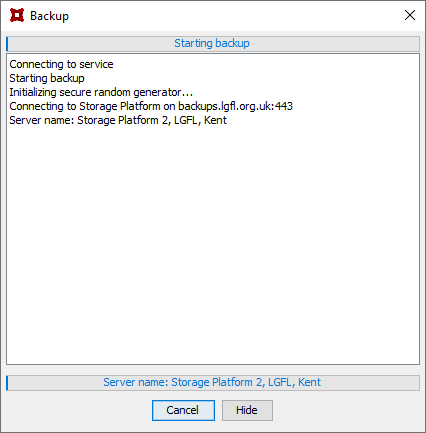
A dialogue window will open displaying the progress of the backup.
A summary of the actions performed will display when backup is complete.
|
Ideally backups should be performed on a regular basis via scheduled tasks.
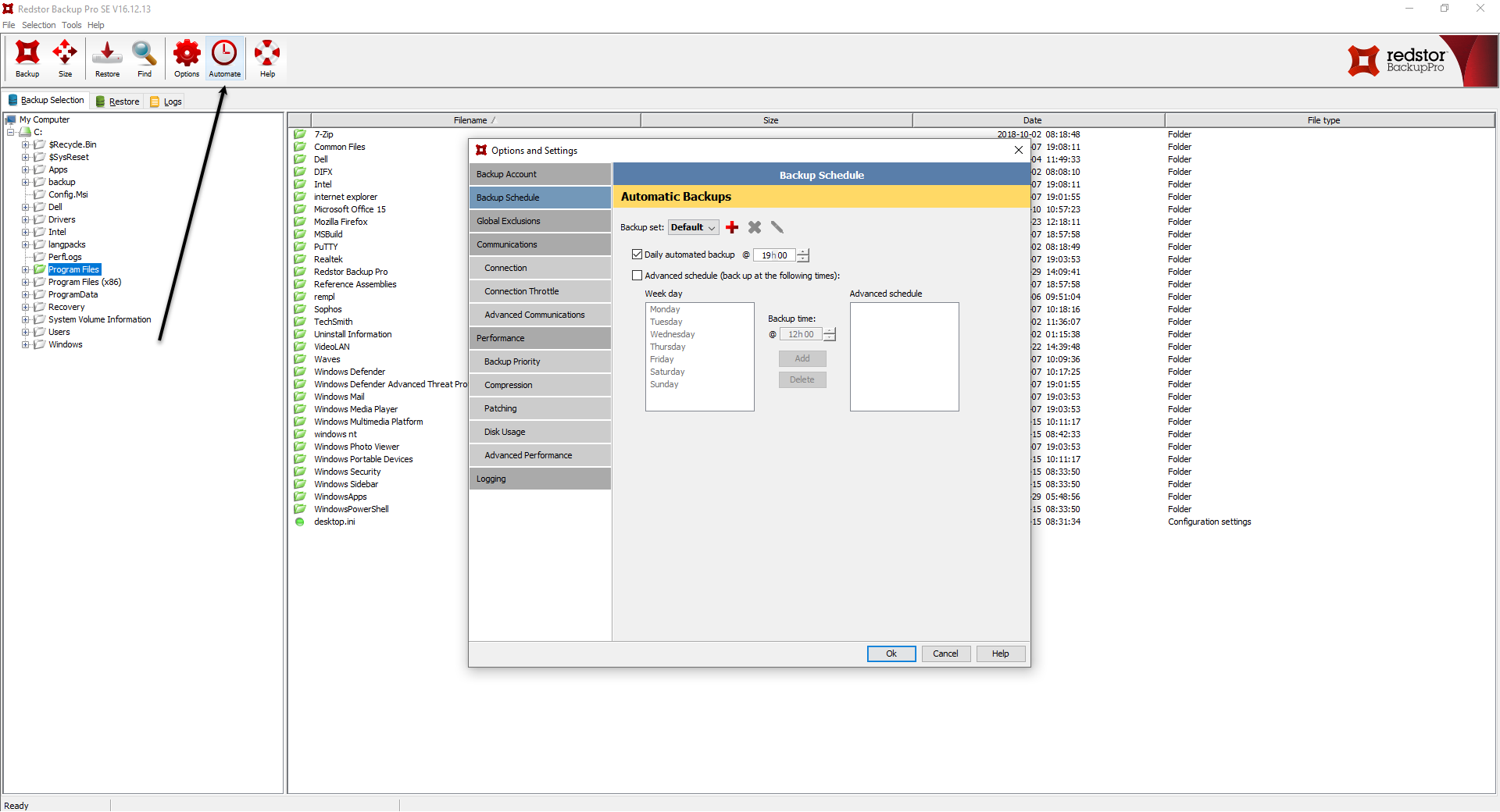
To create a scheduled task click on the Automate button in the top bar.
The Backup Schedule dialogue window will open allowing you to set a regular backup schedule.
|
Disk space
It is advisable to change the DB's, Cache and toBackup locations to a drive with a good amount of free space.
These settings can be found in: Options > Disk usage.
Security
Ideally, security settings should be left on the default option "prompt for password on restore". This is found under Options > Backup Account.
 It is recommended that you change your password once the software installation is complete. It is recommended that you change your password once the software installation is complete.
The default password is "password" so please change this by clicking the Change password button before you begin using the product.
Scanning
Exclude the Redstor installation directory from anti-virus or third party scanning tools, also exclude the location of the default directories which can be found in Options > Disk usage.
The default directories found in Options > Disk Usage should be kept on the local storage (same drive letter) and not mapped drives or network shares.
|
See next:
Restoring files from backup