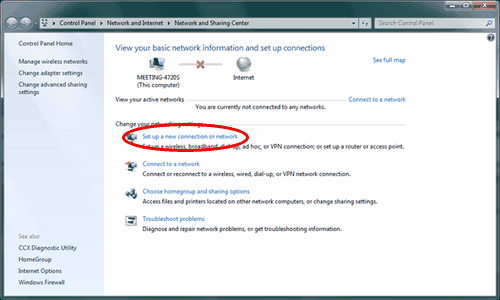
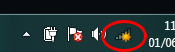
Open the Network and Sharing Center by clicking on the network icon in the task bar.
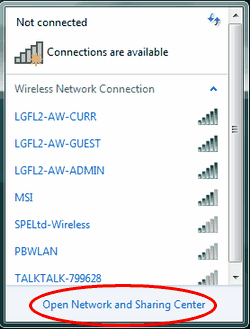
Select the Open Network and Sharing Center option at the bottom of the pop-up window.
Now choose Set up a new connection or network as you will need to configure this connection yourself.
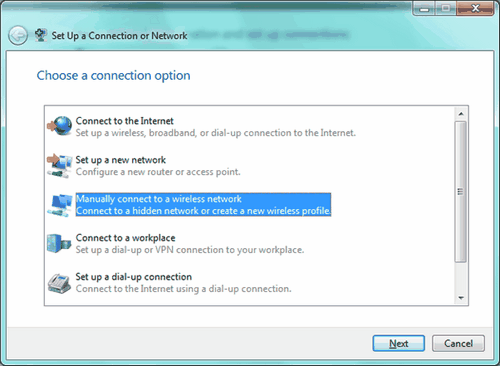
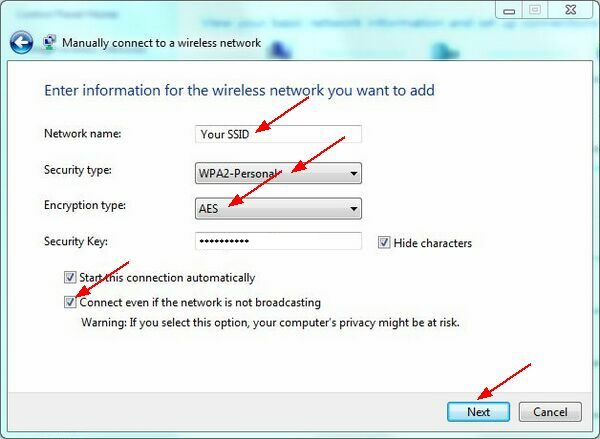
Then select Manually connect to a wireless network. Click Next.
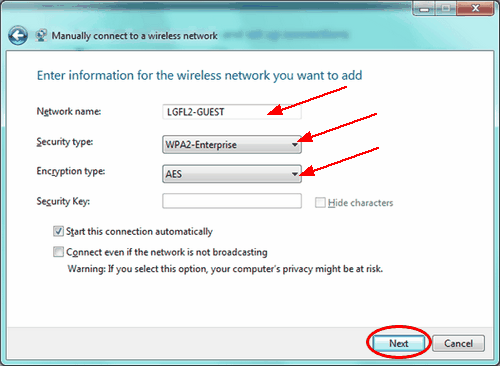
You will need to enter the network name provided by the network administrator.
From the Security type dropdown menu select WPA2-Enterprise.
The Encryption type should then show as AES.
Click Next.
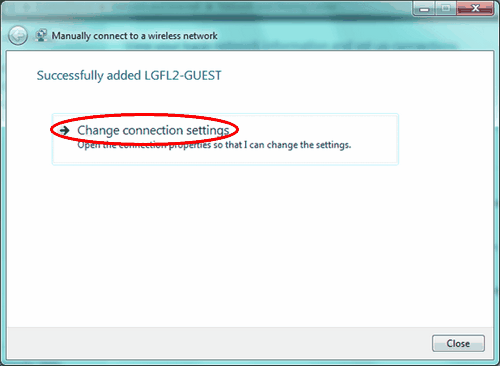
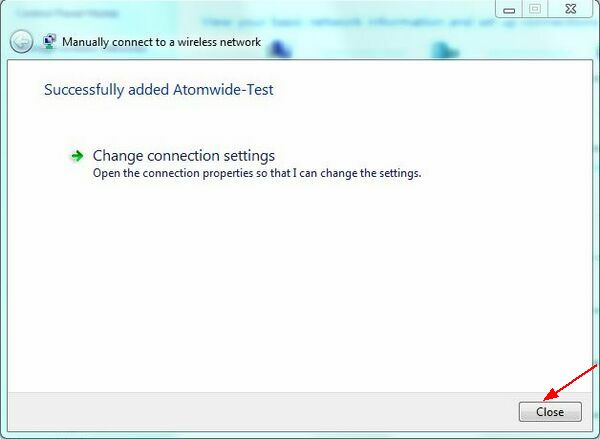
In the next window click on Change connection settings.
A pop-up window will open. Select the Security tab.
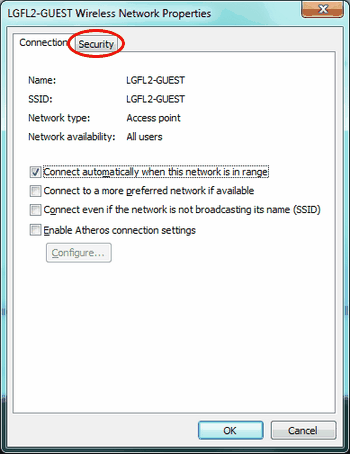
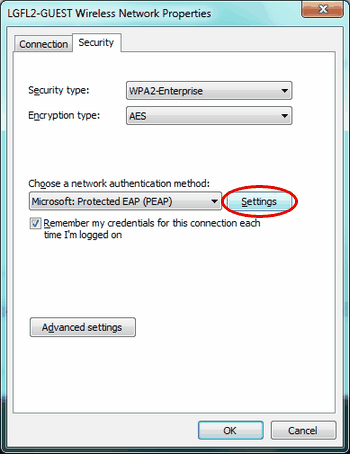
The Choose a network authentication method should be shown as Microsoft: Protected EAP (PEAP).
Click the Settings button to the right.
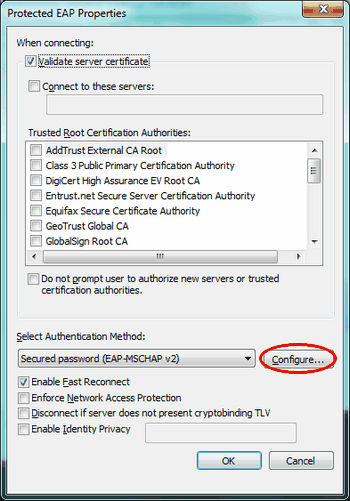
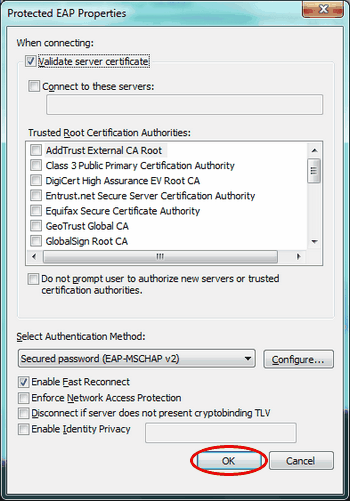
In the window that opens, click the Configure button.
Untick the tick box in the next window. Then click OK.
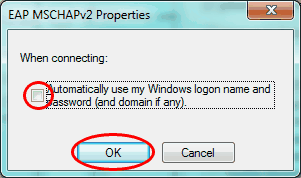
You will be returned to the previous window. Click OK to exit it.
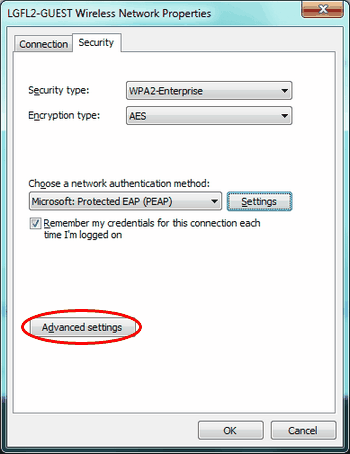
In the following window click on the Advanced settings button.
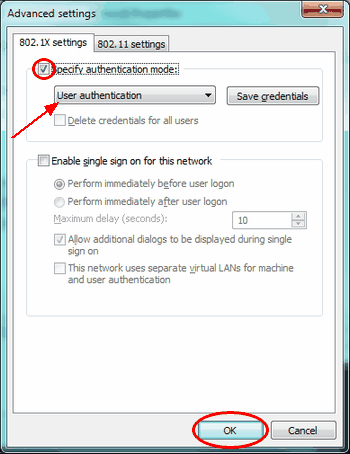
Now tick the Specify authentication mode tick box.
From the dropdown menu below select the User authentication option.
Click OK.
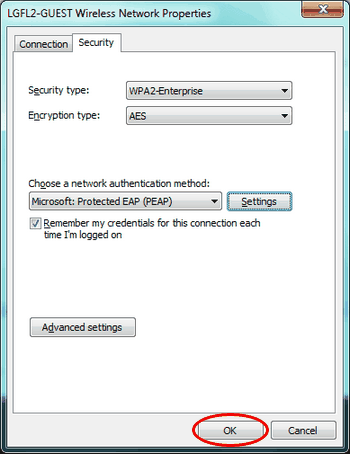
Click OK on the next window to close it.
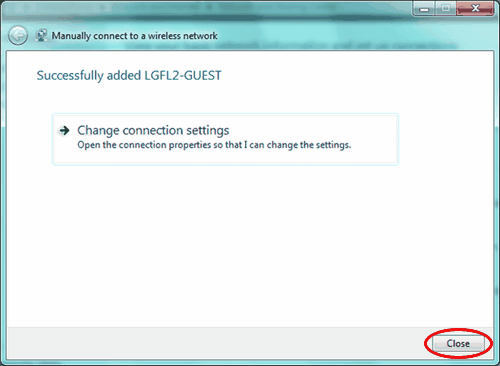
Click Close on the remaining window.
Your computer will now attempt to connect to the new network but the login process is not yet complete.
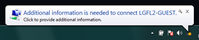
You will see a message pop up just above the task bar. Click on the message.
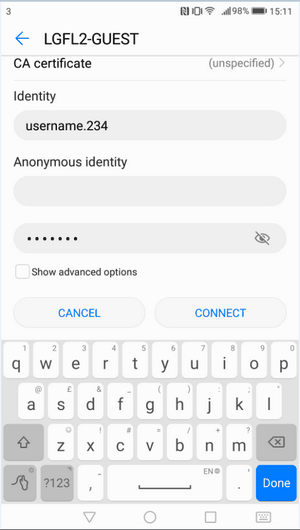
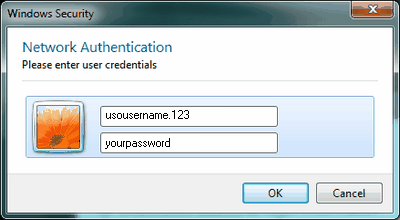
You will now be asked to enter a username and password.
This should be your full uso username, including the LA suffix, and your usual USO password.
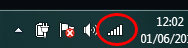
The connection should now be established and the network icon in the task bar will change colour.
|