Groupcall Xporter Installation Guide Created by Groupcall - www.groupcall.co.uk Tel: 0870 460 2134
For support or any other enquiries, please contact Groupcall.
|
Version Details: SIMS Atomwide USO
|
Installation Procedure To ensure that the Xporter application will function as expected, we recommend that a dedicated SIMS user be created specifically to interact with the software (i.e. Groupcall). This user can also be an existing SIMS user if required. Please ensure that the user you decide to use is a member of the following SIMS groups: 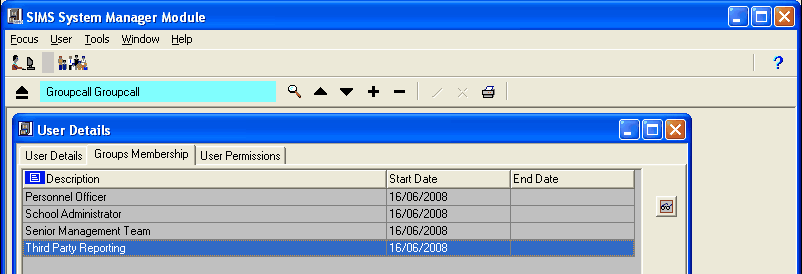 1. The Xporter installation application can be accessed via the following URL http://www.groupcall.co.uk/clients/atomwide/atomwideuso_gcx_setup.exe By following the link above, you will be prompted with the following options, click Run to continue. 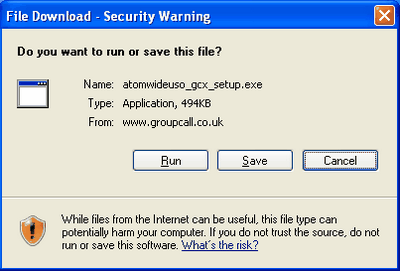 2. You will now be prompted with the following options, click Run to continue. 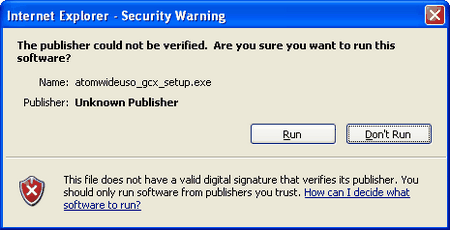 3. The following options will be displayed, click Next to start the installation. 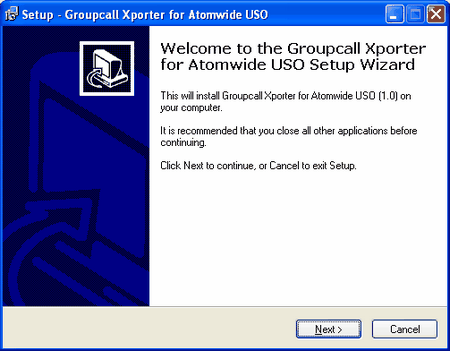 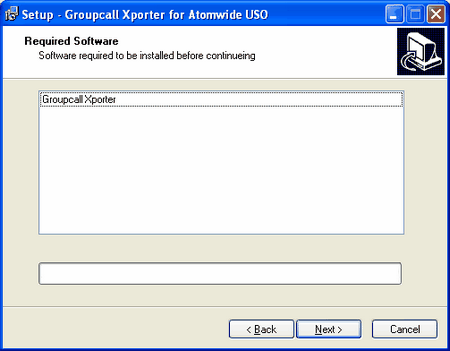 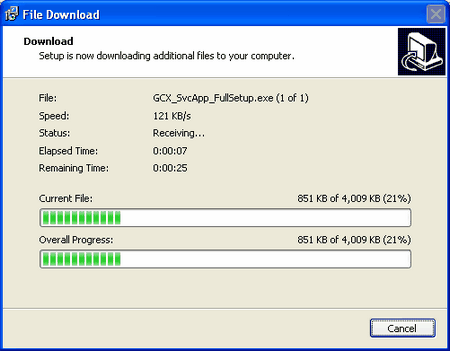 4. The Xporter Service Setup Wizard will be displayed, click Next to begin the setup. 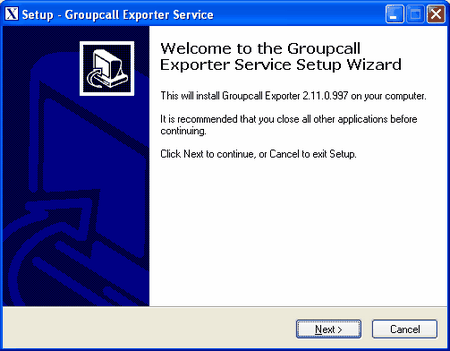 5. Enter your school details here and hit Next, there may be details already populated, but they can be changed accordingly. Click Next to continue. 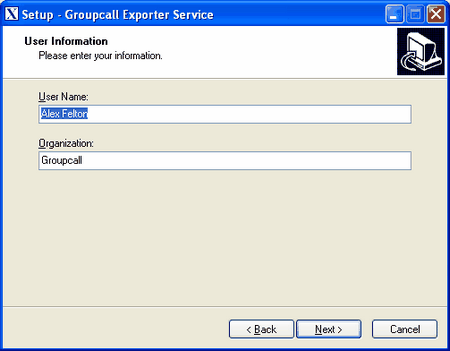 6. The directory where Groupcall will be installed will be automatically selected, click Next to continue. 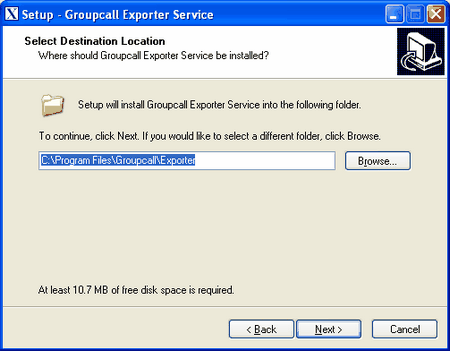 7. Select the Xporter Service component for SIMS, click Next to continue. 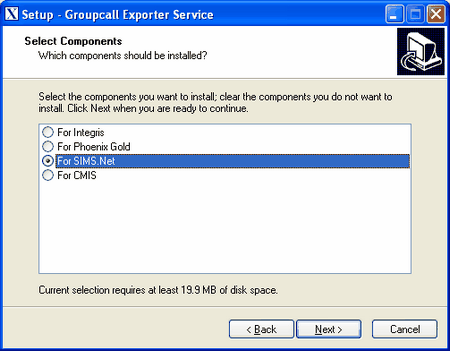 8. All configuration options have been entered, click Install to continue. 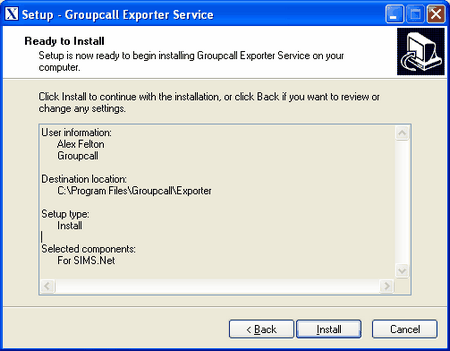 9. Basic installation is complete, Click Finish to complete. 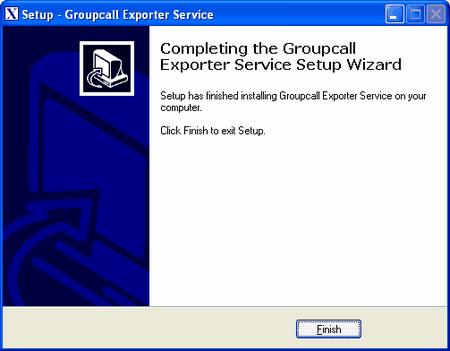 10. Atomwide USO specific settings will now be configured, click Install to continue. 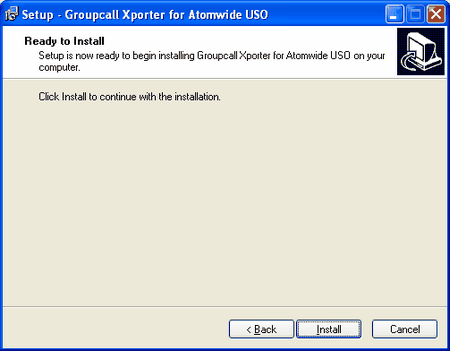 Click Finish to complete. 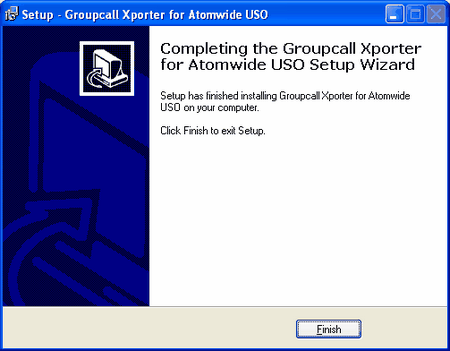 The Xporter service will now start:
11. You will be presented with the Xporter Settings screen. Please enter your LA Code, School Name and DfES number. 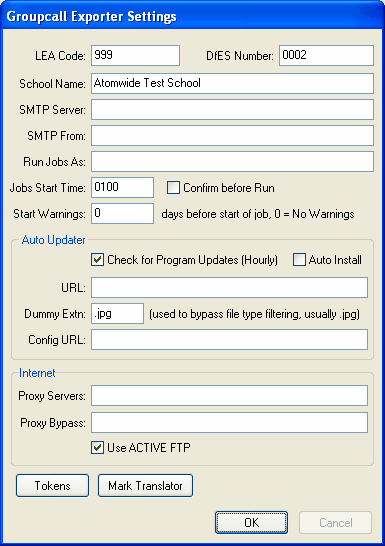 After clicking OK, there may be a delay of up to 1 minute, where you will be prompted to enter your SIMS user credentials that you have created/identified previously.
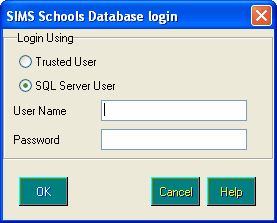
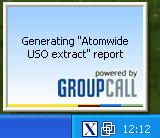
At this prompt, you will need to enter the username/password you entered in the above step. Note: If the user was newly created, then please enter the temporary password created by the System Tool and you will then be prompted to enter a new permanent one. 12. Once complete, a popup window will appear on the right of the screen confirming that the Xporter extract has started correctly.
The Xporter icon will now appear on the right of the taskbar at the bottom of the screen and remains there every time you log onto your PC. By Clicking on this icon, you will be presented with the following information: 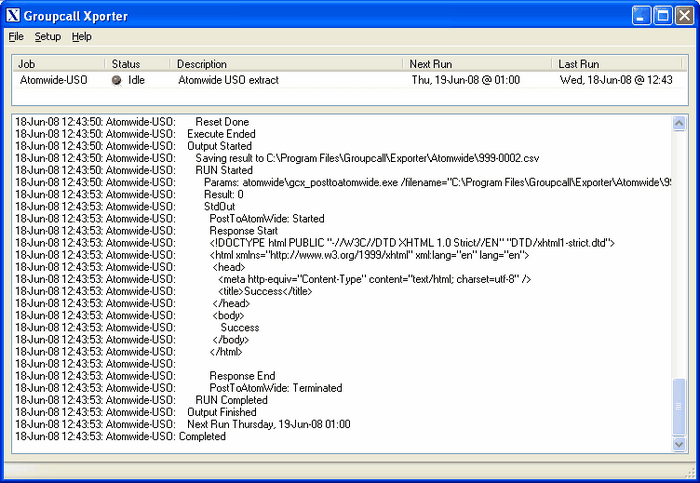 Installation is now complete. If the 'Next Run' column shows a red “pip”, this indicates that the most recent data extract has failed. Should this occur, please contact your local administrator. |
|