LGfL schools
Please refer to the LGfL User Guide by clicking here.
Exporting core USO data
The daily USO-related data exports cannot be scheduled by schools. This data is processed overnight so as not to conflict with other processes.
Attendance data
Schools have the ability to export attendance data directly from their MIS. These exports must be scheduled by each school so that they take place at a suitable time during the day. The scheduled time should be shortly after the morning and/or afternoon attendance has been entered into the MIS.
Schedules must be set using the functionality provided on the AutoUpdate settings page in the support site.
If your school uses the RM Integris G2 MIS, click the radio button next to that choice, then click Select MIS.
The screen that follows will confirm your chosen MIS and require you to accept the reports that you want to be able to export.
Scheduling data exports to run
The schedule for the main data exports can't be changed and the only option available when that report is selected in the scheduling tool is Run Now. This button can be used if you need to run the report manually at a time other than its scheduled time.
Attendance exports
If Attendance reports have been accepted, they must be scheduled to be exported once or twice a day (depending on your school's preferences).
Make sure the Atomwide Attendance report is selected from the dropdown menu.
This is set to run every weekday by default. The days may be changed to whatever is required if the Selected days only option is chosen.
Then specify the time that the export should take place. The export should be set for a time when you know the day's (or morning's) registration has been taken and recorded in the MIS.
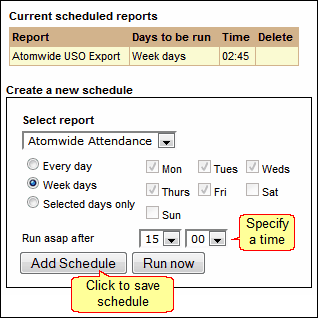
The saved schedule will appear in the list of Current scheduled reports.
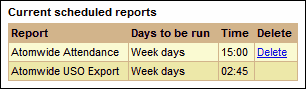
If your school records both morning and afternoon attendance you can set a schedule for each set of data to be exported at the required time.
If you need to change a schedule you have created simply Delete the existing report and create a new one.
See also:
