Introduction to USOSync
USOSync software (which replaces ADSync) was created by Wavenet Education to enable schools to manage LAN and WAN user accounts from a single location - the support site. Via USOSync, Windows domain accounts within a school can be automatically created and removed as users join and leave the school. Home directories can also be created and shared for new users. With USOSync, all users log into a school’s local network with their USO usernames and passwords.
The software eases the administrative burden on schools and means that each user has greater consistency in the username and password which he or she uses, whether accessing resources on the school’s Local Area Network or the wider LA/RBC system.
As well as creating Windows user accounts, USOSync groups them in Organizational Units (OUs) for Students (sub-divided by Year Group or Year of Entry), Staff and Nominated Contacts, creates and shares home directories, and sets folder permissions, leaving only the management of Group Policies and login scripts (if required) to be handled locally.
How USOSync works
The Active Directory is updated from the information which is held in the USO database. If this information is up to date (from an automated process such as USO-AutoUpdate) then the active directory will also be up to date with the latest movements of users. For example, if a person is unallocated from a school via the support site interface, he/she is also disabled within the active directory.
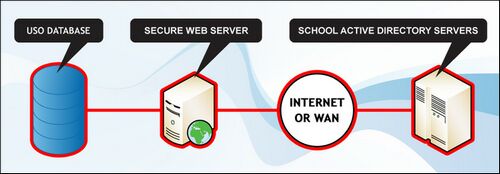
What USOSync controls
•USOSync can be configured to control the following elements of an Active Directory:
•OU structure
•Profile path
•Home areas
•Login Scripts
•Year Group changes (as long as this information is correct within USO)
•Email from USO Account
•UPN
Technical information
How USOSync will affect the structure of an existing AD
The current version of USOSync enforces a strict Organisational Unit structure that can't be modified once it is put in place. A new OU will be created during installation and user accounts will be placed into the relevant part of the new OU.
If a school currently uses an AD structure that involves multiple OUs, the installation of USOSync may require your structure to be simplified as USOSync allows for a limited number of specifically defined OUs only.
Schools that implement USOSync will have greatly reduced day-to-day user administration to perform as many functions are performed automatically. However, the automated nature of the system means that the ability to exercise very granular control over the AD structure will be reduced.
The required OU structure is split as follows:
•Contact OU (ie Nominated Contacts only)
•SLT OU (ie Head Teacher)
•Staff OU
•The Student OU contains all pupils, separated by year of entry into the education system. (ie Entry 2010, Entry 2009) or be split into year group (ie Year 7, Year 8)
•Governors OU
The image below illustrates an example of the OU structure
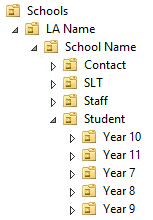
If your school has existing OUs that correspond to USOSync's "Staff", "Student" and "Contact" (Nominated Contacts) OUs then those OUs can be renamed and moved to the locations expected by USOSync, thus preserving any existing Group Policy Objects.
If your OUs do not match those required by USOSync then your OU structure will need to be amended. If you currently apply a collection of Group Policy Objects to different OUs you will need to amend these GPOs once the OUs have been re-structured.
The location of individual accounts within the OU structure is determined by their USO account profiles. For example, if a member of staff has the role of Nominated Contact configured in his/her user account profile, this person will automatically be placed in the Contact OU within the USOSync OU structure.
By extension, when pupil accounts are synchronised with USO via USOSync, if they are separated into years they are automatically moved to the next year group at the start of a new academic year.
 If you have user accounts in your existing AD that you do not wish to synchronise with USO, these accounts will remain untouched by USOSync and you will need to maintain them manually.
Basic outline of the installation process
1. School submits a USOSync form to Wavenet Education.
2. Wavenet Education uses USOSync to create an example user in the AD.
3. The school inspects those users and confirms they are OK.
4. The full sync run is done, creating all accounts in the AD.
5. The scheduled task is set up to run every 15 minutes to create the home areas if required.
See next:
