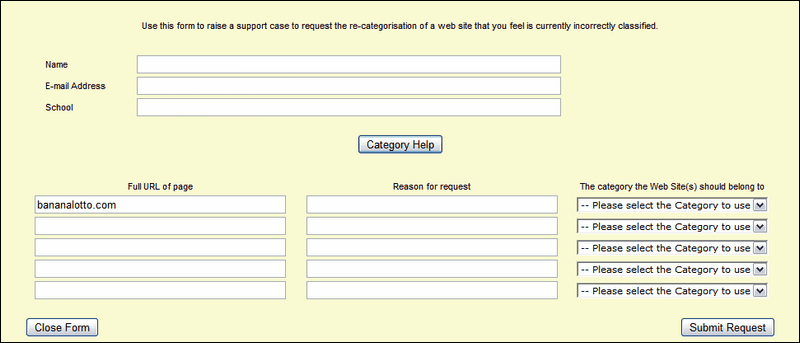
As an LA-level filtering administrator you are able to allow or block specific urls for a single school or across the entire LA using the URL categorisation page.
Select a school from the Schools dropdown menu. If you do not select a school, your action will apply to all schools.
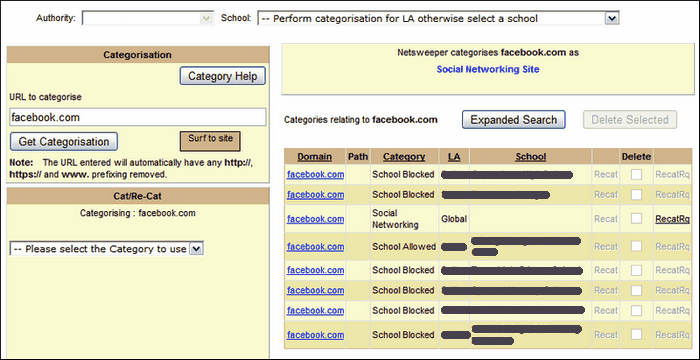
Enter the url into the URL to categorise field and click on Get Categorisation. The results will be shown in the right part of the screen. The top section will show the category of the url as defined in the global database. Below that will be a list of schools that have categorised this url and stating the decision taken.
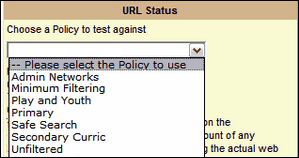
To see how this categorisation applies to different policies, use the URL Status box in the lower left corner.
Select a policy name to see whether a blocked or allowed rule applies.
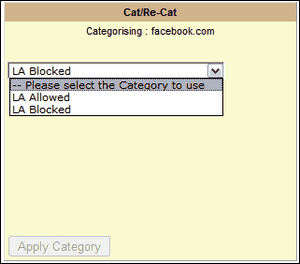
The LA can override any setting defined by individual schools. If you wish to ensure a url is allowed or blocked for everyone, select the desired option in the Cat/Re-Cat section. Schools will not be able to override a setting made at the LA level.
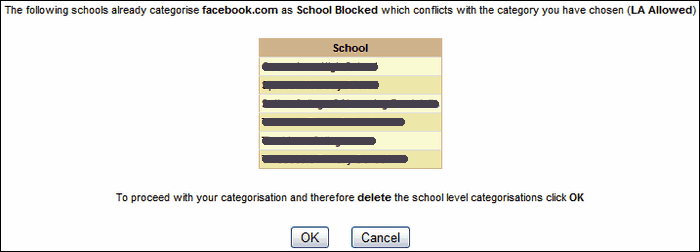
If any schools within your LA have already set a rule for a url that is in conflict with the rule you select, you will receive a warning message. The message will name the schools that have a different rule and inform you that by proceeding with your action you will delete and override the schools' settings. If this is what you wish to happen, click OK. If you wish to allow each school to define its own rule click Cancel in order not to create an LA-wide rule for the url.